Quick start
For tutors and teachers. About 15 minutes to get a student working.
Want to try something before signing up for anything? Take a paper you’ve already marked, type the marks into the marking tool, and it’ll tell you which skills those dropped marks point at. No account, nothing to cancel.
Parts 1 to 3 go together. Part 4 works on its own and needs no account.
1 · Set yourself up
Create your account
Go to the sign-up page and use an email address and password, or Sign in with Google.
Create a class
Dashboard → Classes → New class
Give it a name — “Year 10 Tuesday”, “GCSE Higher group”, anything — and press Create.
If you teach one-to-one, read this bit
Make one class per student, named after the student.
It looks strange, and you’d be forgiven for putting all eight of your individual students into one class called “My students”. That reports the wrong thing, and it won’t warn you.
Here’s why: you can tick off the topics you’ve taught, and progress is measured against that list — but the list belongs to the class, not the student. Eight students in one class share a single list, so their percentages end up measured against topics most of them have never been taught.
2 · Get your students in
Two ways in. Email invitations are better if you want to know who hasn’t joined yet; otherwise either is fine.
Option A · Invite by email
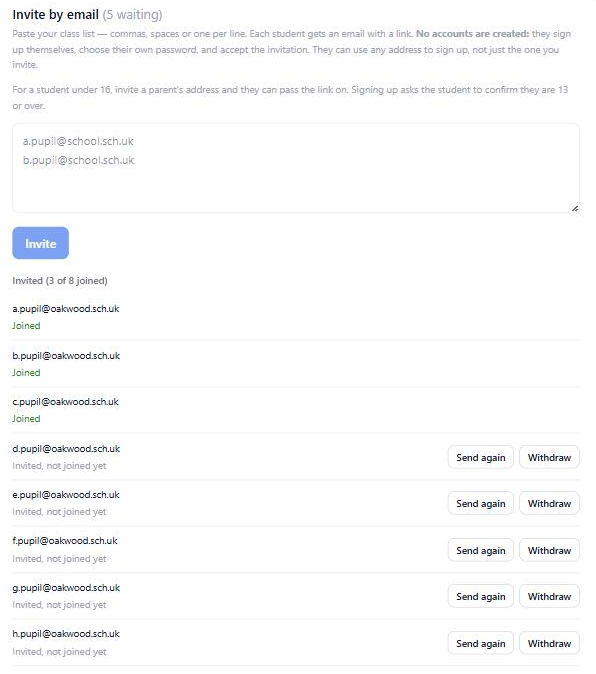
Your class → People → Invite by email
Option B · Give out the class code
Your class → People → Join code
It’s four characters, like MX4T.
Keep the ?mode=signup on the end of that link. Without it they land on a login page, and the sign-up link sits underneath where most people don’t spot it.
Three things worth knowing before you invite a group
- Inviting doesn’t create accounts. Students sign up themselves and accept. That’s deliberate — it’s what makes the account theirs, and it’s why we can’t hand you a list of ready-made logins.
- They can use any email address, not only the one you invited.
- For anyone under 16, invite a parent’s address and let them pass the link on.
3 · Get them answering questions
Three ways. You don’t have to choose — most tutors use all three.
A · Run a session — nobody has to sign up
The fastest way to see it working, and the easiest thing to put in front of a student who doesn’t want an account.
Dashboard → Run a lesson → Start a session
Choose the qualification and how many questions each, then Start session. You get a short code. They go to mathsense.net/s and type the code and a first name — no email, no password, nothing to install. You watch their answers come in, right and wrong, as they work.
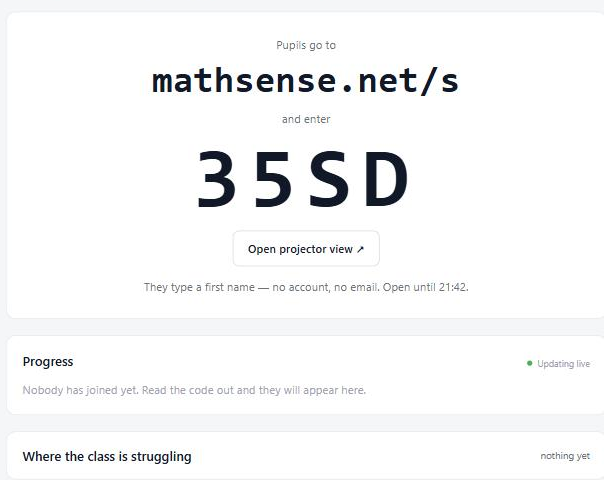
Two time limits.
The session stops accepting answers 6 hours after you start it, so a 9am session is dead by 3pm. Just start a new one.
Everything is deleted the same evening. Excellent for a lesson, no use at all as a record.
B · Let them practise — the one that matters
Once a student is in your class they can just use it: pick a skill or a topic, answer questions, and get the answer explained whenever they’re wrong. Nothing for you to set up.
This is what most students do most of the time, and it’s what builds the skill map you’ll be looking at in part 5. If you do one thing after they join, it’s this: tell them to go and practise something.
C · Set them specific work
Dashboard → Assignments → Create
Then press Create assignment. Worth it when you want everyone doing the same thing — not worth bothering with in the first week.
4 · Mark a paper
The part closest to a marks spreadsheet, and it needs no account at all.
What it does, and what it doesn’t
It doesn’t mark anything. There’s no question text, no answers and no mark scheme in here. You mark the paper yourself, exactly as you do now.
What it has is every question of 66 past papers tagged with the skills it tests — all 2,466 of them, read and coded by hand. So when you type in the marks, it can tell you the thing the marks alone can’t: which skills those dropped marks point at.
Step by step
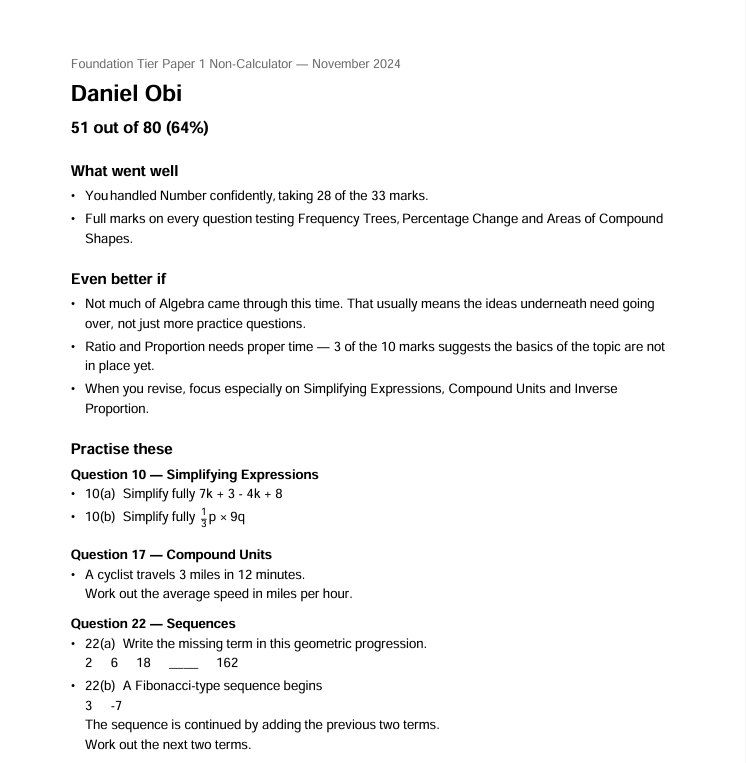
Prefer a spreadsheet? Download CSV template gives you one with the question numbers and marks already in it. Fill it in, then Import marks from CSV.
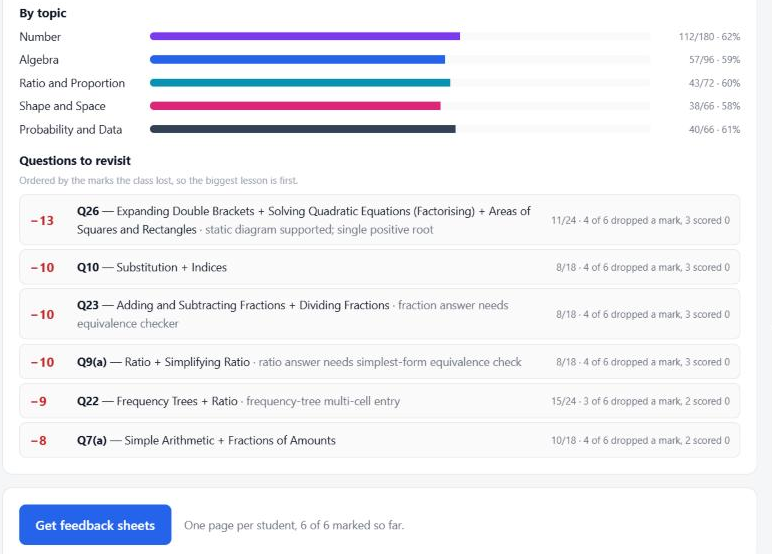
Step 5 gives you the average, median, highest and lowest, a breakdown by topic, and — the useful one — Questions to revisit, ordered so the biggest lesson is at the top. That part is yours; it never appears on a student’s sheet.
Three things to know
Blank and zero are the same thing. Leaving a box empty doesn’t take the question out — it still counts as nought out of whatever it was worth. To genuinely leave questions out, untick They sat the whole paper and deselect them.
Nothing is saved. It all lives in that browser tab and vanishes when you close it. Download the PDF first.
For your first go, pick an AQA June 2025 paper. Those sheets come with practice questions to hand out. Most papers don’t have them yet — they’re written by hand, and that’s how far we’ve got.
Making it count towards their skill map
Your class → Papers → Record a marked paper
Same grid, but it saves, and each student’s skill map updates — full marks counts as secure, and a dropped mark never pulls a skill down. A bad morning can’t undo a term’s evidence.
5 · See how they’re doing
Dashboard → Your students
Sort by Quietest first to find whoever has drifted — usually more useful than finding whoever is struggling loudly, because they’ll tell you themselves. Tap any student for the full breakdown.
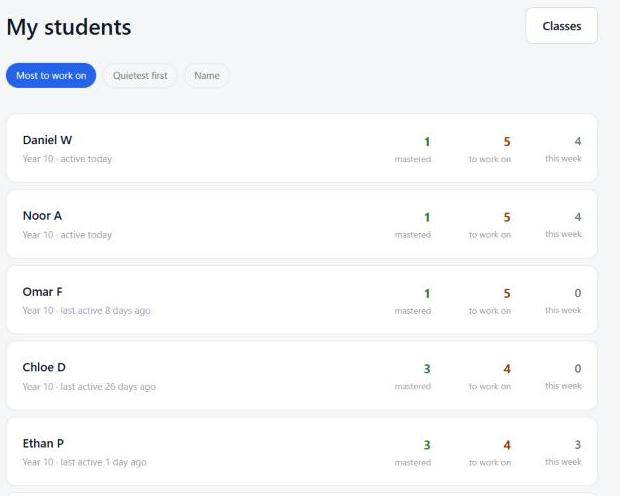
“To work on” needs five attempts at a skill before it says anything. Below that it sits quietly as “in progress”. So the number barely moves at first — that’s normal, not a sign nothing is happening.
Once you’re past the first week
Open a class and there’s more: mastery by topic, progress over time, and Topics covered — tick off what you’ve actually taught, and progress is measured against that instead of the whole GCSE. Worth doing, or the percentages look bleak for no good reason.
Quick reference
Five things that catch people out
- One class per student if you teach one-to-one.
- The class code goes in My classes, on their own dashboard.
- Sessions stop after 6 hours. Just start another.
- Inviting isn’t joining. Nothing appears until they’ve signed up and accepted.
- “To work on” needs five goes at a skill before it shows up.
Anything that looks wrong probably is. Tell us — especially about the marking, which is the newest part of this.